 Motivation Money
Getting Started
Set up your organization and run your first payroll in under 30 minutes.
This guide walks you through the complete setup — from creating your organization to running your first payroll.
Step 1: Create Your Organization
- Go to app.motivation.money/sign-up
- Enter your name and company email (e.g.,
you@acme.com) - The system checks your email domain:
- Domain not claimed — you're prompted to create a new organization. Enter org name, region, and industry.
- Domain already claimed — you join the existing organization as an employee.
- Verify your email with the 6-digit code sent to your inbox.
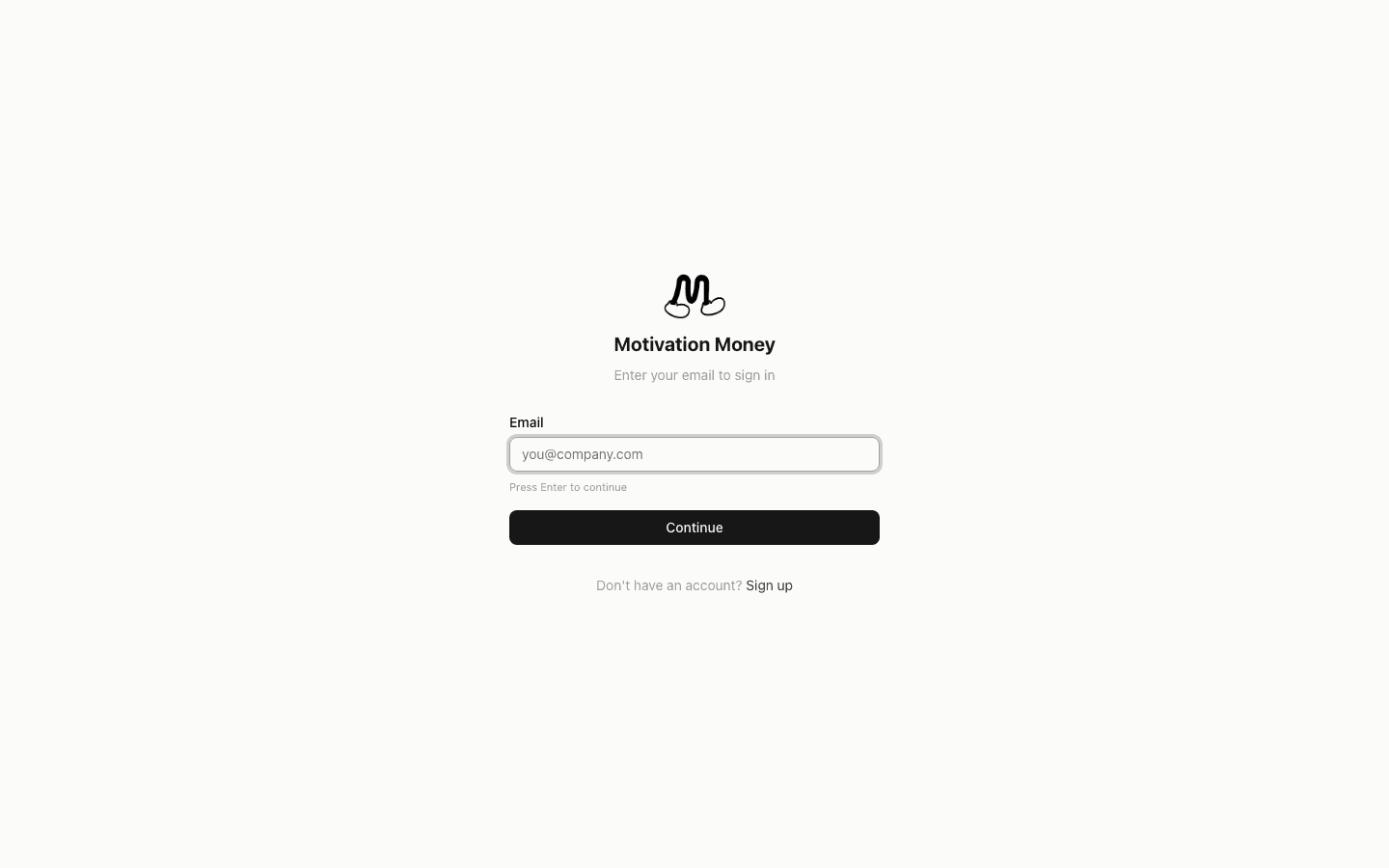
Your email domain is claimed exclusively — no other organization can use it. This ensures employees signing up with @acme.com always land in your org.
Promotion: All organizations currently have full Pro access — unlimited members, no restrictions. See Pricing for details.
Step 2: Connect Your Safe Wallet
Your treasury lives in a Gnosis Safe multi-sig wallet. Motivation Money never holds your funds — it proposes transactions that your signers approve.
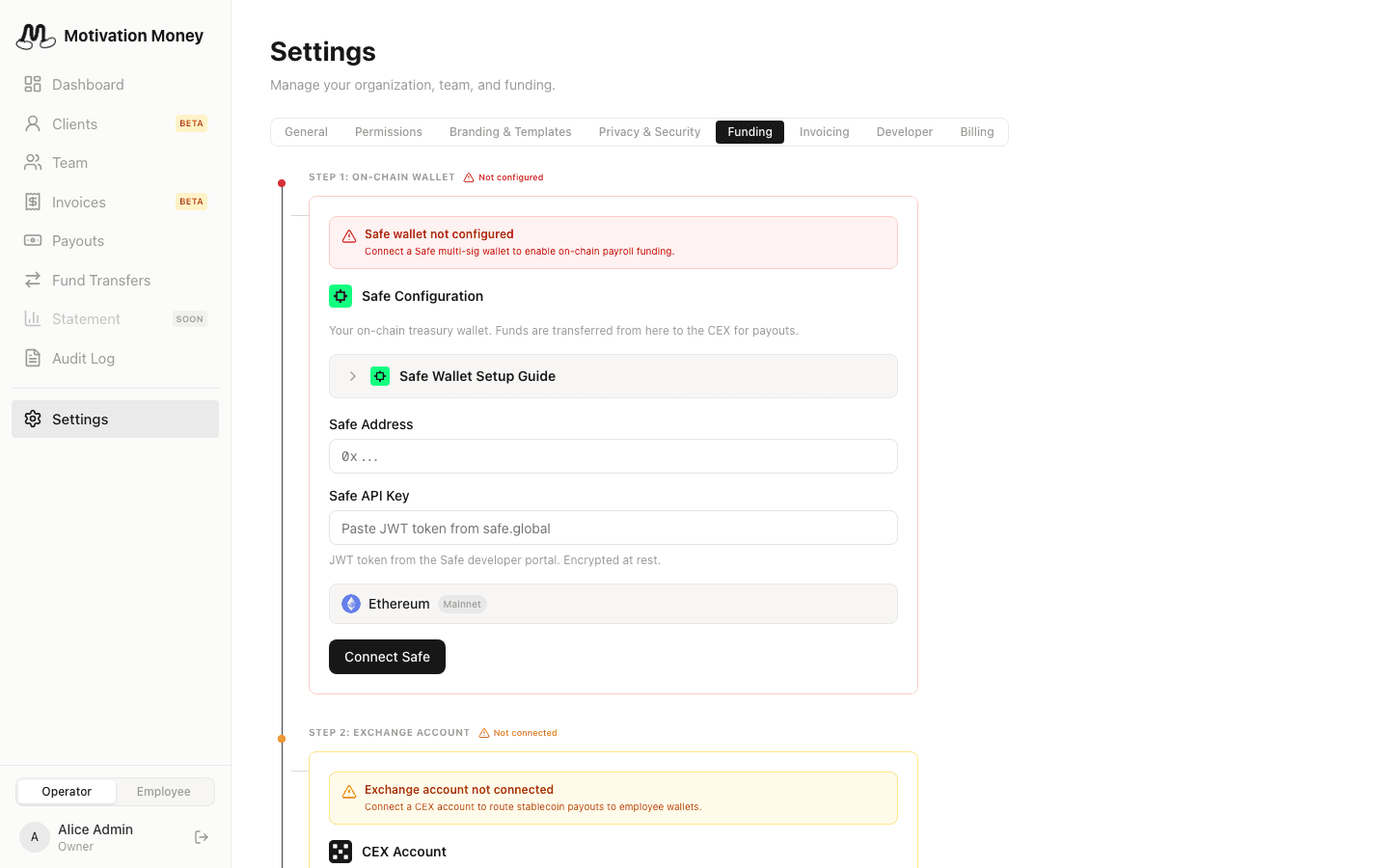
- Go to Settings → Funding
- Enter your Safe address and API key (from app.safe.global)
- The system verifies the Safe and shows: threshold, owner addresses, nonce
- Map Safe owners to team operators in Signer Management
- Designate one signer as the Agent Proposer for automated transaction proposals
Step 3: Connect Your Exchange
Your exchange routes payouts to employee wallets. Motivation Money supports OKX, Coinbase, Binance, and Kraken.
- In Settings → Funding, scroll to CEX Account
- Select your exchange provider
- Enter API credentials (API key, secret, passphrase where required)
- Click Test Connection to verify
- The deposit address appears automatically
See CEX Setup Guide for exchange-specific walkthroughs.
Step 4: Configure Safety Gates
Still in Settings → Funding, configure transfer safety:
| Gate | What it does |
|---|---|
| Transfer verification | Triple-source address verification before sending |
| Signer acknowledgment | Signers confirm they've reviewed transfer details |
| Simulation check | On-chain simulation before execution (optional) |
Step 5: Set Up Legal Entities (Optional)
If your company operates multiple entities (e.g., "Acme Corp USA" + "Acme Singapore Pte Ltd"):
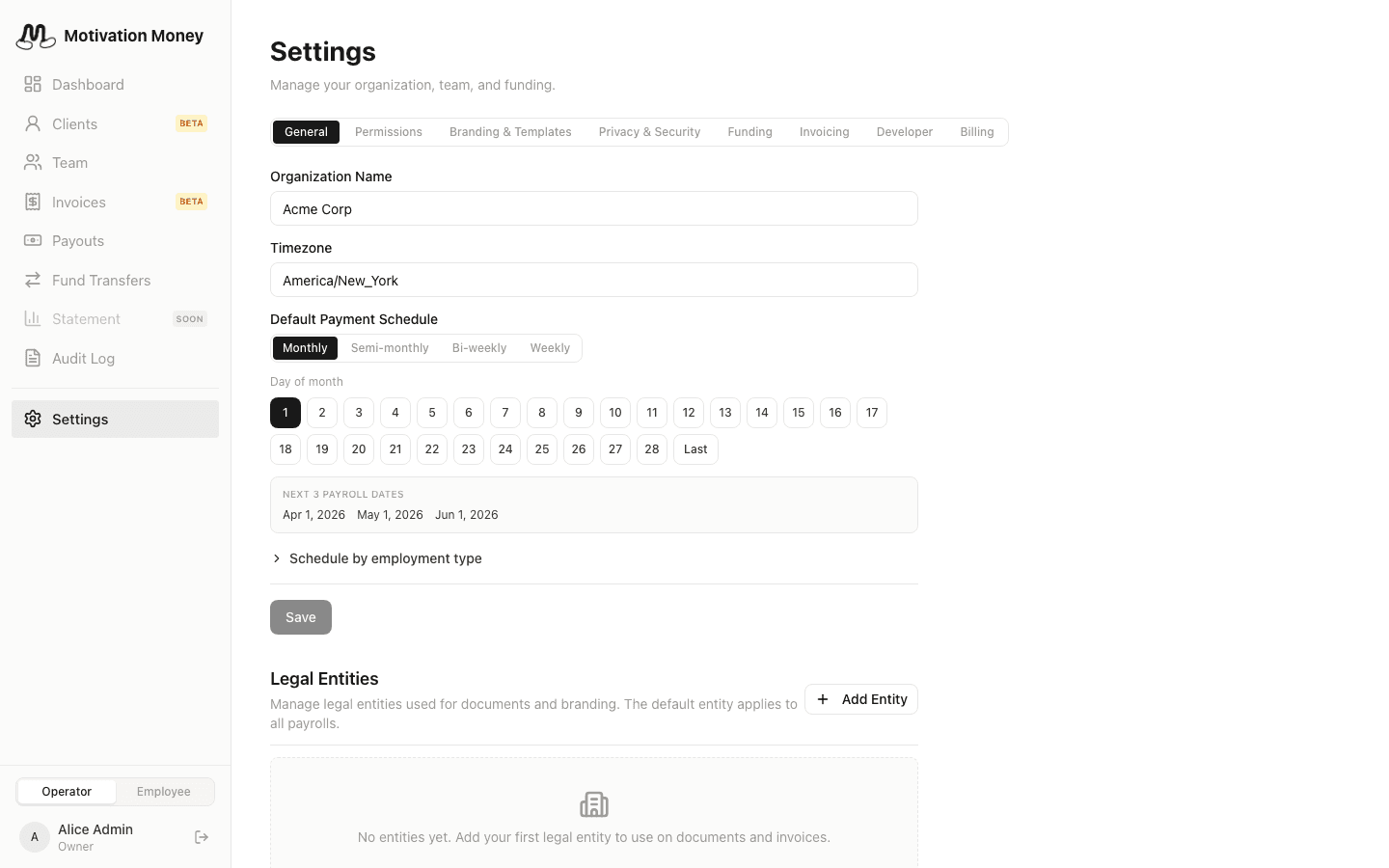
- Go to Settings → General, scroll to Legal Entities
- Click Add Entity — enter name, jurisdiction, address, representative details
- Upload entity-specific logo and signature image
- Set one entity as default — it appears on statements and email templates
- Assign employees to entities in their member detail dialog
Step 6: Add Your Team
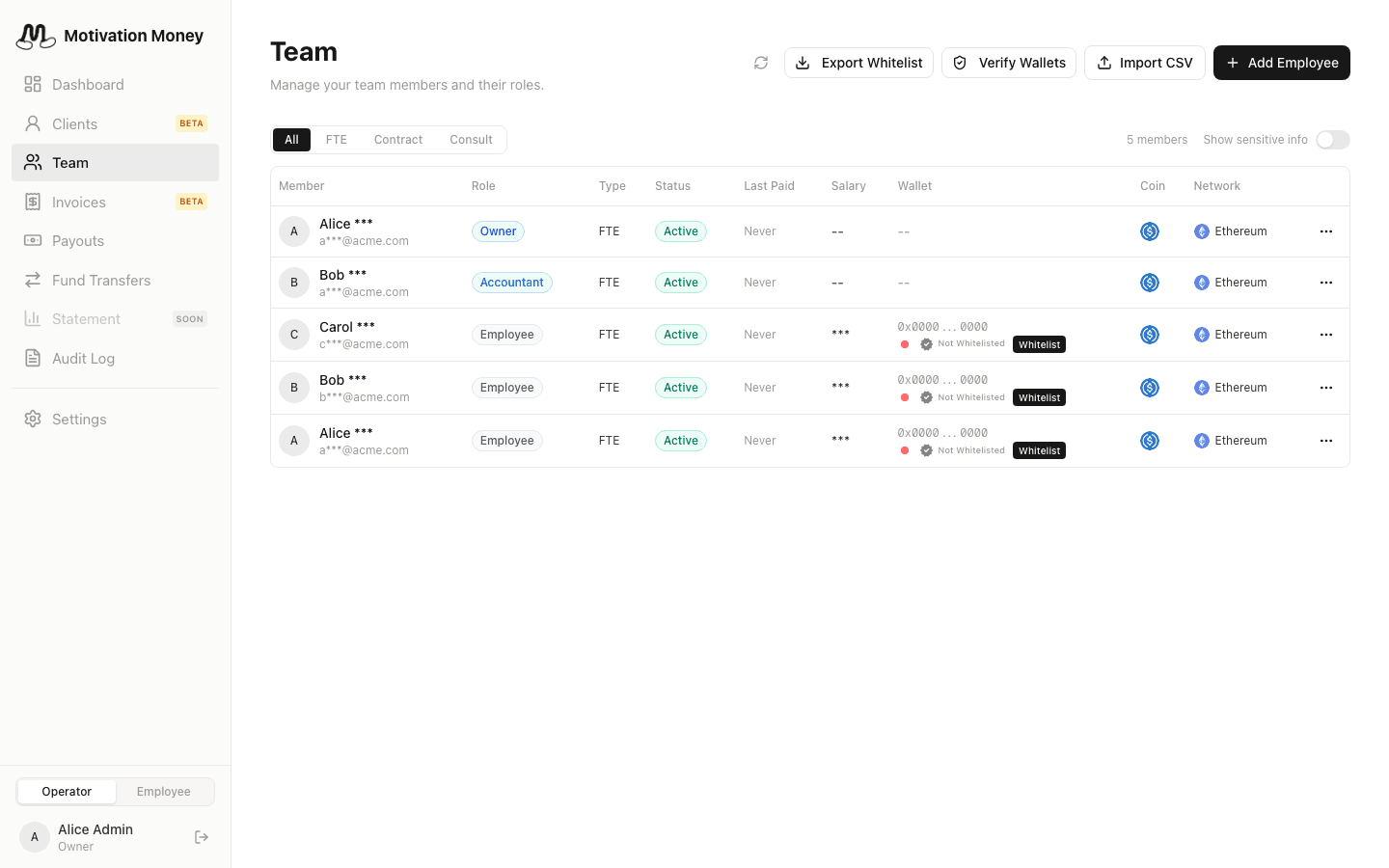
- Go to the Team page → click Add Employee
- Enter name, email, salary, employment type, stablecoin, and network
- The employee receives an invitation email to create their account
- For bulk onboarding, use Import CSV
Custom Employment Types
Create any type to match your team structure:
- Settings → General → Employment Types → Add Type
- Enter a key (e.g.,
AMBASSADOR) and display name - Custom types work everywhere: payroll filtering, permissions, templates, statements
Step 7: Verify Wallet Addresses
Before running payroll, verify every wallet:
- On Team → click Verify Wallets
- The system sends a small micro-deposit to each unverified wallet
- Employees confirm the exact amount in My Account
- Verified wallets show a green checkmark
See Wallet Setup Guide for the detailed flow.
Step 8: Run Your First Payroll
- Payouts → New Payout → Payroll Run
- Set period dates, select employment types to include
- Review employee table with calculated amounts
- Click Create Payroll Run
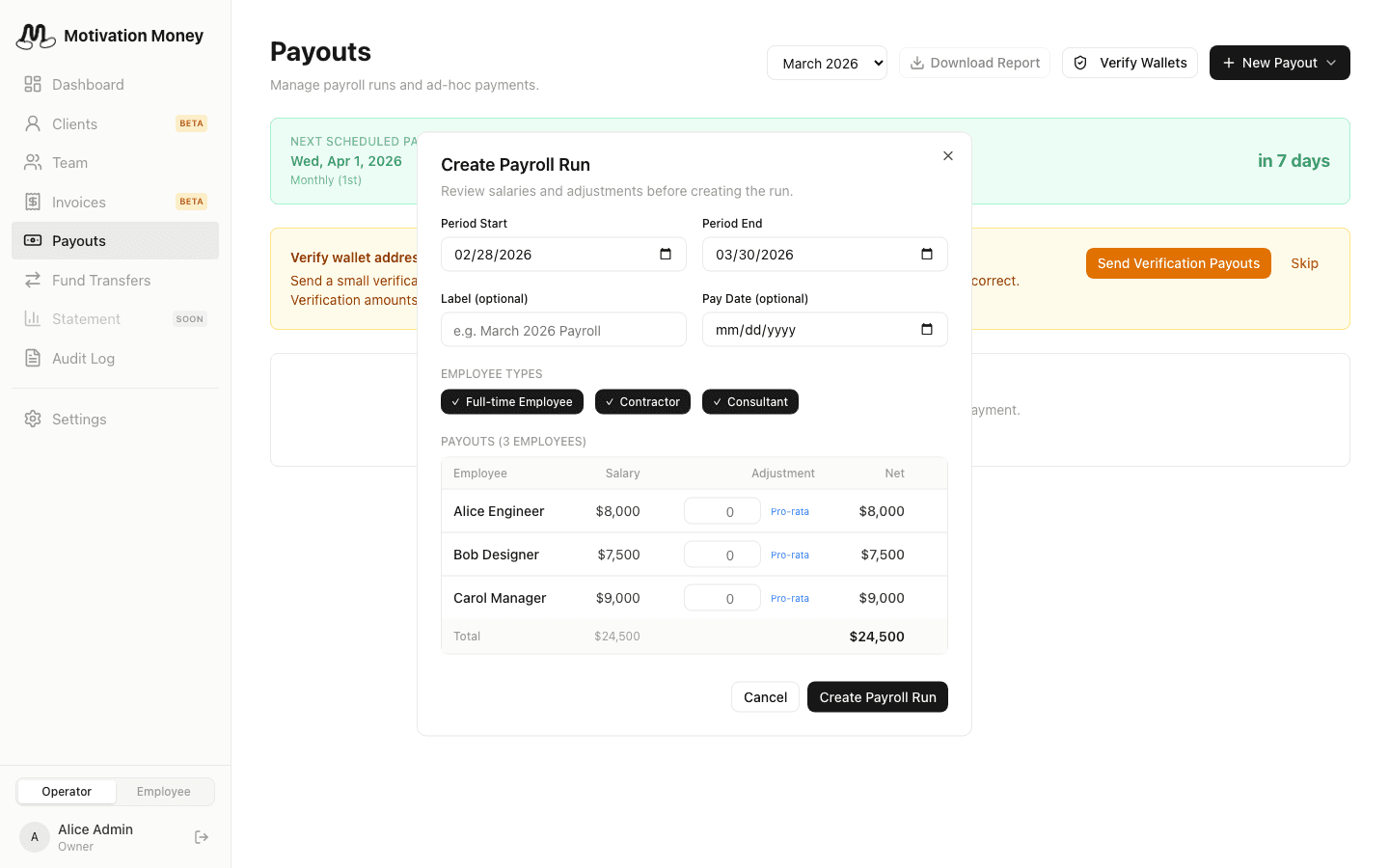
Then follow the pipeline: Draft → Confirm → Execute → Completed
Employees receive email notifications when their payout is confirmed on-chain.
How Funds Flow
┌─────────────┐     ┌─────────────┐     ┌─────────────────┐
│  Safe Wallet │────▶│  CEX Account │────▶│ Employee Wallets │
│  (Treasury)  │     │  (OKX, etc.) │     │  (Individual)    │
└─────────────┘     └─────────────┘     └─────────────────┘
       ▲
       │  (Auto-sweep)
┌─────────────────────────┐
│  HD-Derived Wallets      │ ◀── Client payments
│  (Per-client addresses)  │
└─────────────────────────┘
Pay-out: Safe → CEX → Employee wallets (privacy-preserving)
Pay-in: Client → HD wallet → Auto-sweep to Safe treasury
What's Next
- For Operators — complete operator reference
- For Employees — employee self-service guide
- API & Agents — automate with AI or scripts